Seabright Technology Header Image

Problems building GCC in the cloud

We do a lot of GCC builds in the Toolchain Working Group. The x86_64 and i686 builds were beginning to overwhelm the build farm so I thought I’d have a play with the cloud and shifted them out to Amazon EC2. The x86_64 builds are nice and fast – a c1.xlarge instance bootstraps C, C++, and Fortran in 38 minutes and tests in 34.

The i686 builds were problematic. A Natty instance store backed c1.medium instance would bootstrap fine but then show random failures when running the testsuite. Using Natty EBS backed AMI and running the testsuite sequentially cleared up the problem, but unfortunately takes twice as long to run.

For reference, the c1.medium bootstraps in 64 minutes and tests in 2:48.

Free Electrons ELC 2011 Videos

The Free Electrons guys have posted their videos of the 2011 Embedded Linux Conference at http://free-electrons.com/blog/elc-2011-videos/.

There was quite a Linaro contingent there.

Basic Gantt charts using LibreOffice Calc

We’re currently doing the next six months worth of planning here at Linaro. I wanted a simple Gantt chart to show when a task is expected to start and finish and found a nice way of doing it using a LibreOffice stacked bar chart.

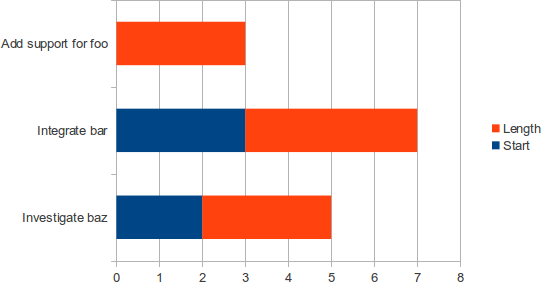
The trick is to make the first bar invisible and use it as an offset. Start with a table like this:

Name Start Length
Investigate baz 2 3
Integrate bar 3 4
Add support for foo 0 3

Select all of the data, then select Insert | Chart.... Select ‘Bar’ then the stacked bar chart. Click finish and you’ll see something like this:

Note how the rows are in an unfortunate bottom to top order. Double click on the blue part of any bar to bring up the Data Series dialog. Click on the Area tab, set the Fill to None, and you’ll get this:

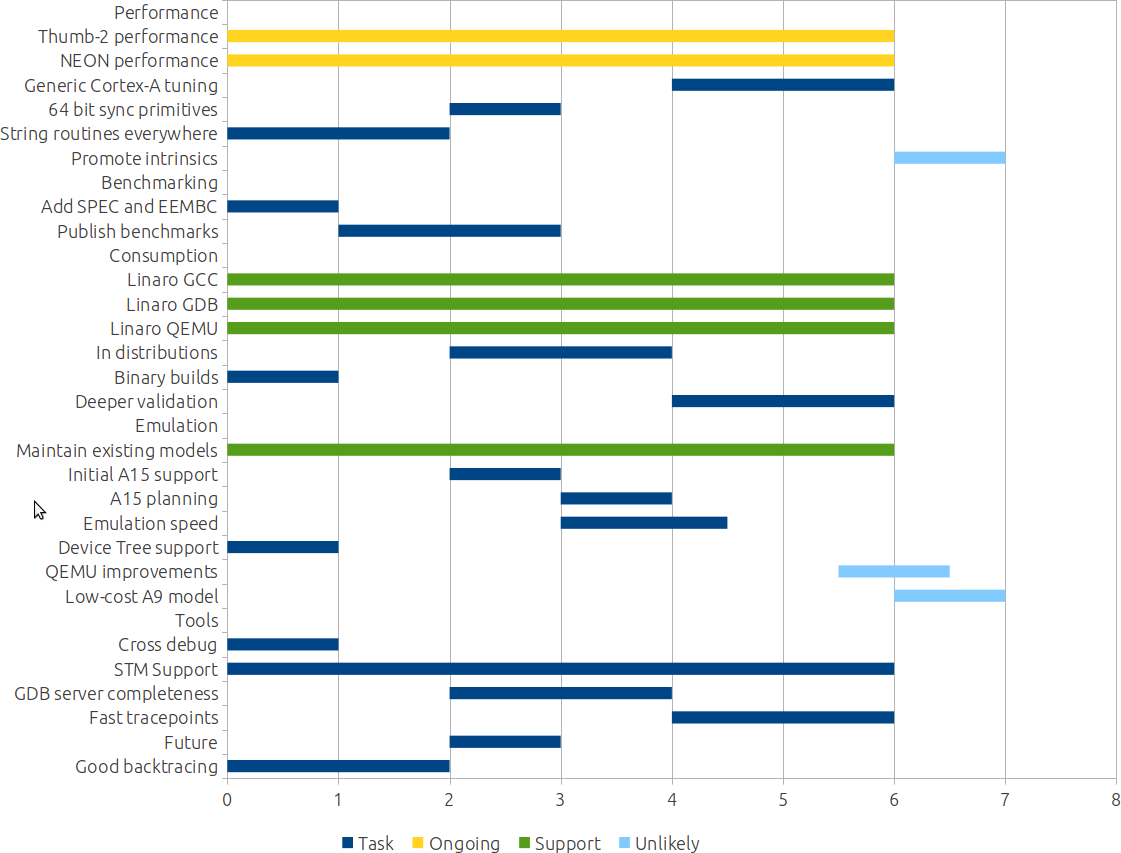
You can use extra columns to get extra colours. Here’s the final toolchain timings chart:

The spreadsheet this came from is available at:
bzr branch lp:~linaro-toolchain-wg/planning-1111

Building the Ubuntu PandaBoard Kernel

So that I can find it next time I need it, here’s what you need to do to checkout and build the Ubuntu kernel for a PandaBoard:

First up, clone it using git:

  • git clone git://kernel.ubuntu.com/ubuntu/ubuntu-natty.git

You can see the current list of kernels on the getweb page.

Branch the remote ti-omap4 branch and check it out locally:

  • git branch --track ti-omap4 remotes/origin/ti-omap4
  • git checkout ti-omap4

Set up your environment:

  • export ARCH=arm
  • export CROSS_COMPILE=arm-linux-gnueabi-

Grab the default configuration:

  • cp debian.ti-omap4/config/config.common.ubuntu .config

Configure it for your needs:

  • make oldconfig
  • make menuconfig

And build away!

  • make uImage -j3

Thanks rsalveti on #ubuntu-arm!

Automatically trimming matplotlib images

matplotlib is a great mathematics and plotting package for Python. I’m using it to report on some benchmarking numbers but needed a way to automatically trim the extra whitespace before putting onto a web page. Here’s the ImageMagick command I ended up using:

convert input.png -bordercolor white -border 1x1 -trim +repage -alpha off +dither -colors 32 PNG8:output.png

To break it down:

  • -bordercolor white -border 1x1 – add a one pixel white border to make sure trim trims the right colour, and to remove a single pixel artifact in the top left.
  • -trim – trim the extra whitespace
  • +repage – recentre the image on the canvas
  • -alpha off – drop the alpha channel, if any
  • +dither -colors 32 – dither down to 32 colours
  • PNG8:output.png – write out to output.png in 256 colour mode.

The PNG8: is the secret sauce – for every other option I tried, ImageMagick would still write out a 32 bit colour file.

These together shrink 592 kB of images down to 144 kB.

Efika pricing

Sorry for the commercial post, but Genesi have been a good friend to Linaro and Emdebian.

If you’re looking for a small ARM-based machine, have a look at the Efika MX series from Genesi as they’ve just come down in price. The Smarttop is $129 US while the Smartbook is down to a much more respectable $199 US. Both are based on the 800 MHz Cortex-A8 i.MX515. Linaro has support for at least the Smarttop.

The Smarttop is particularly interesting. It’s the same price as the BeagleBoard but has twice the RAM, an 8 GB SSD, Ethernet, WiFi, and, very importantly, comes in a case.

Running the Fedora ARM beta on qemu-linaro

The Fedora ARM project have released beta 1 of Fedora 13 for ARM. Chris Tyler has instructions for trying it out under Fedora, so I thought I’d give it a quick go with Ubuntu and qemu-linaro. Here’s the steps:

  • Download, build, and install qemu-linaro. I used the 2011.02-0 release.
  • See Chris’s page for the Fedora download link.
  • Download the RPM package with the QEMU image.
  • Go to a temporary directory and extract the RPM using rpm2cpio ~/Downloads/armvm-f13beta1-15.fc13.noarch.rpm | cpio -idmv
  • Change to var/lib/libvirt/images. You might need to install the rpm package to get rpm2cpio.
  • Start qemu-linaro using something similar to ~/opt/bin/qemu-system-arm -m 256 -M versatileab -kernel zImage-versatile-2.6.24-rc7.armv5tel -append root=0800 -hda f13-arm-beta1-rootfs.img

The root password is fedoraarm.

Working with other Linaro releases

chdist is a nice tool that makes working with different releases much easier. You can use it to poke into and download packages from different releases without setting up a chroot for each one. I use from my Maverick host to grab the source packages from Natty when trying to track down a bug.

For example, I’m looking into adding cortex-strings into the Natty libc6. Install chdist using:
apt-get install devscripts

Tell chdist about Natty:
chdist create natty

Update the list of packages:
chdist apt-get natty update

Check which version is currently uploaded:
chdist apt-cache natty show libc6

Grab the source:
chdist apt-get natty source libc6

The distributions and configuration files end up under ~/.chdist such as ~/.chdist/natty/etc/apt/.

Efika MX shoutout

I’d like to say thanks to the people at Genesi. I was a lucky recipient of one of the many EFIKA MX Smartbooks they gave away at the Linaro November LDS. It’s a nice little ARM-based smartbook with a 10″ screen, decent processing power, decent storage, and a quite good keyboard. My day-to-day machine is a hefty IBM R500 Thinkpad and compared to that the EFIKA is a breath of fresh air.

The CPU is a 800 MHz Freescale i.MX515. The Cortex-A8 core inside has roughly the same performance per MHz as an Atom and about twice what you’d see in a ARM9 and, as it has decent memory bandwidth unlike earlier ARMs, it can much better drive and fill the 1024×600 screen. The internal NAND storage is quite quick (much faster than any SD card I’ve seen). The software stack needs a bit of work as they’re taking the pure approach so things like graphics acceleration, video decoding, and faultless suspend need improving.

Something I find very interesting about this machine and similar ones like the Toshiba AC100 or anything Ingenic based is you stand a chance of controlling every part of your device from bootloader to UI meaning that you really own it, not just use it by someone else’s permission.

Check out their technical blog at http://blog.efikamx.info/.

Tidying up ARM boards

My office was getting a bit messy so I re-purposed an old PC case and mounted my ARM boards, a switch, and far too many power supplies into it:

The case

It turns out that my Pandaboards and KwikByte Beagleboard clones fit well into a 5 1/4″ floppy drive adapter while keeping the Ethernet and power out the back and storage accessable out the front:

Pandaboard mounted in a floppy drive adapter

PandaBoard mounted in a floppy drive adapter

A 6x OMAP3 Gumstix Stagecoach board goes where the motherboard used to:

Side view showing the Stagecoach

with a switch down the bottom to keep the cables tidy.

2x PandaBoards, 2x BeagleBoards, a Stagecoach, and far too many twist ties gives 12 cores for a total of 9.76 GHz of processing… not as cool as David’s box, but I like it.